Medium covers most drafts at 6 credits. High at 4K costs 40, so save it for the final.
Get product photos and edits from GPT Image 2 on Nsketch: quality levels, 4K sizes, reference images, credit costs and when to switch to 2.5.
What GPT Image 2 Is Good At
GPT Image 2 is OpenAI's image model for generating and editing, with three quality levels you pick per image. It suits product shots, illustrations and concept art, and wide banners or covers that need a 4K preset.
Its strongest editing job is product placement: attach a photo of something you already sell and put it in a new setting. The prompt tells it to keep the product as it is and describes everything around it.
It has two gaps. It can't make transparent backgrounds, and it stops at High quality. GPT Image 2.5, in the same model picker, adds both, along with Extra High and Max tiers.
Settings and Limits on Nsketch
You set quality and size for every image. The default is Medium at a square size. The full spec list is on the model page at nsketch.ai/models/gpt-image-2.
| Setting | Options on Nsketch |
|---|---|
| Quality | Low, Medium, High |
| Sizes | Presets from square to 16:9, up to 2160×2160 and 3840×2160; Auto when images are attached |
| Reference images | Up to 10 |
| Transparent background | Not available; use GPT Image 2.5 |
| Plan | Paid plan required |
How to Prompt GPT Image 2 for Product Photos
A product prompt works like a shot list. Name the product by material, color and one identifying detail, put it on a specific surface, and say where the light comes from. "Soft window light from the left" fixes the direction of the shadows; "good lighting" fixes nothing.
Add one or two props at most and say how busy the frame should be. "Minimal studio composition" keeps the background from filling up with objects you didn't ask for.
- Pattern: [shot type]: [product, material, color, identifying detail] on [surface], [light quality and direction], [one prop], [composition], [detail level].
- Describe a logo as part of the product, as in "a mug with a small embossed mountain logo", so the prompt ties it to the right object
- Pick the size before you write: a 16:9 banner leaves room beside the product, a square crop doesn't
Editing With Reference Images
Attach up to 10 images and describe the change. For product placement, describe the new setting in full and end with an instruction to leave the product alone, as in "Place the sneaker from the attached photo on a white marble pedestal in a minimal studio with soft shadows, keep the shoe exactly as it is."
Set the size to Auto and the output follows the shape of your images. Each reference adds 4 credits for square output and 6 for other sizes, so a three-photo edit at 16:9 adds 18 credits before the image itself.
Worked Example: A Ceramic Mug Product Shot
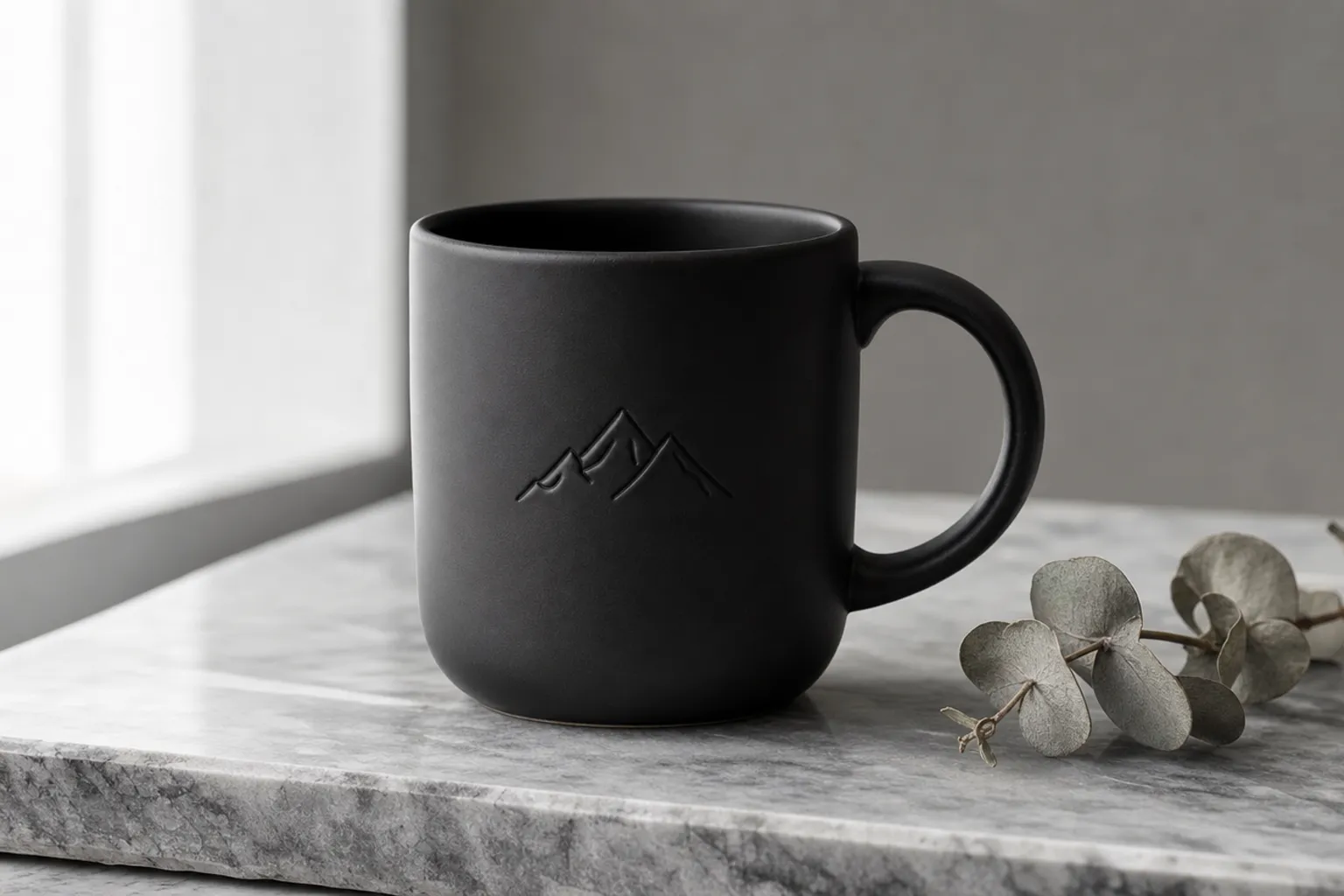
This prompt follows the shot-list pattern from start to finish. It opens with the shot type, names the product by finish, material and color (matte black ceramic), gives it one identifying detail (a small embossed mountain logo), and puts it on grey marble.
Light comes from one stated side, a single prop (a sprig of dried eucalyptus) gives the frame some texture, and "minimal studio composition" keeps everything else out. Replace the mug and the logo with your own product and the rest of the prompt still holds.

GPT Image 2 · 1536×864 · High quality
Prompt
Product photo: a matte black ceramic coffee mug with a small embossed mountain logo on a slab of grey marble, soft window light from the left, a sprig of dried eucalyptus beside it, minimal studio composition, high detail.
What GPT Image 2 Costs
Quality moves the price more than size does. High costs more than three times Medium at the default square size, and Low stays at 3 credits however big the image is.
- A Medium draft at the default square size: 6 credits
- A product placement edit at High, default square size, with one reference photo: 22 + 4 = 26 credits
- The same edit at 3840×2160: 40 + 6 = 46 credits
| Quality | Default square | 2160×2160 | 3840×2160 |
|---|---|---|---|
| Low | 3 credits | 3 credits | 3 credits |
| Medium | 6 credits | 7 credits | 11 credits |
| High | 22 credits | 23 credits | 40 credits |
When to Pick a Different Nsketch Model
GPT Image 2.5 is the closest alternative, and the quality names don't line up between the two. On Nsketch, GPT Image 2.5 High is priced like GPT Image 2 Medium (6 credits at the default square size), and 2.5 Max like GPT Image 2 High (22 credits). Stay on GPT Image 2 when you have prompts tuned on it and want new images to match earlier ones.
- GPT Image 2.5: transparent backgrounds for product cutouts, five quality tiers, and a 4-credit default
- Flux 2 Max: photoreal portraits and interiors at 7 to 9 credits an image, with up to 4 images per run
- Nano Banana 2: 8 credits an image at 1K or 2K when you need many options
- Seedream 5 Pro: built for precise layouts and typography, for menus and posters with several lines of text
FAQ
Frequently asked questions
Yes. Product shots and product placement edits are two of its main uses. Name the material, surface and light direction, and attach a photo of the real product when you want it reproduced exactly.
Describe only the new setting and end the prompt with an instruction such as "keep the shoe exactly as it is." Leave out any adjectives about the product itself.
Not as a transparent export. Switch to GPT Image 2.5 in the same picker and set Background to Transparent.
At 3840×2160, Low costs 3 credits, Medium 11 and High 40. Reference images add 6 credits each at that size.
Yes. GPT Image 2 is available on paid Nsketch plans.